Authentication
Optionally protect your instance with OAuth2 login. Secrets can require authentication to view, and secret creation can be restricted to signed-in users.
How It Works
When your administrator has configured an OAuth2 provider (such as Authentik, Keycloak, Authelia, or any OpenID Connect provider), a "Sign in" link appears at the top of the page. Once signed in, you get access to additional features:
- Authenticated secrets that can only be viewed by signed-in users
- Gated creation where only signed-in users can create new secrets (if enabled by the administrator)
Signing In
Click the "Sign in" link at the top-right corner of the page. You will be redirected to your organization's login page. After signing in, you are redirected back to the app.

Creating an Authenticated Secret
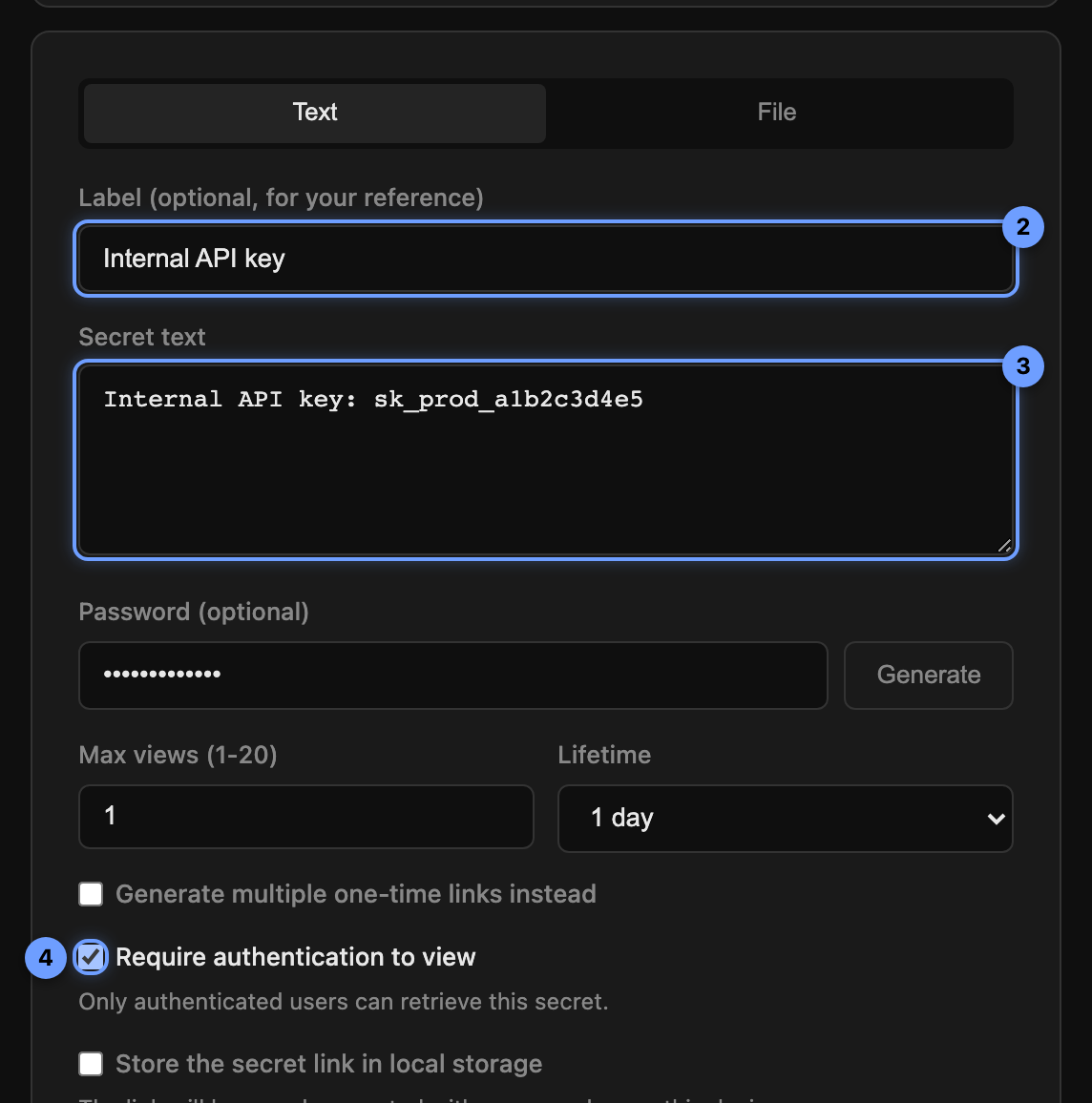
When authentication is enabled, a "Require authentication to view" checkbox appears in the secret creation form.
- Sign in to the app (if you are not already).
- Fill in your secret as usual (text or file, password, views, lifetime).
- Check "Require authentication to view". This means anyone opening the link will need to be signed in before they can retrieve the secret.
- Click "Create Secret" and share the link.
Viewing an Authenticated Secret
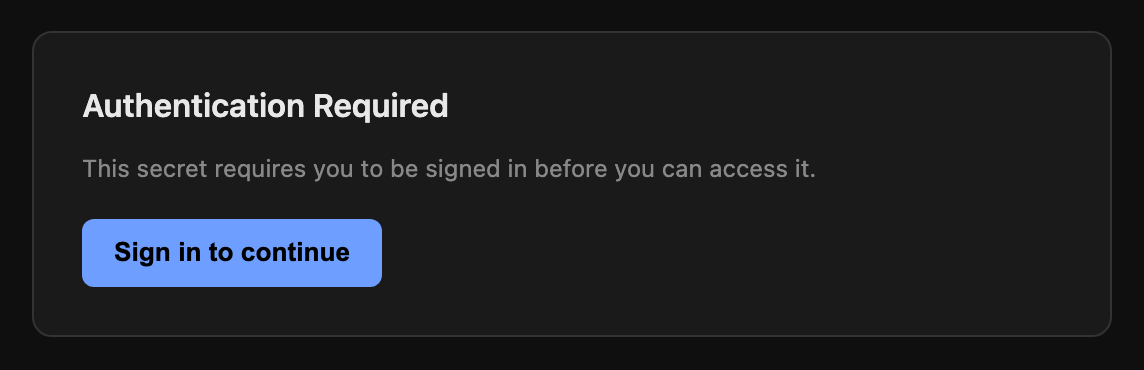
When someone opens a link to an authenticated secret and they are not signed in, they see a prompt to sign in first. After signing in, they are redirected back to the secret and can proceed normally (entering a password if required, then retrieving).
Gated Creation
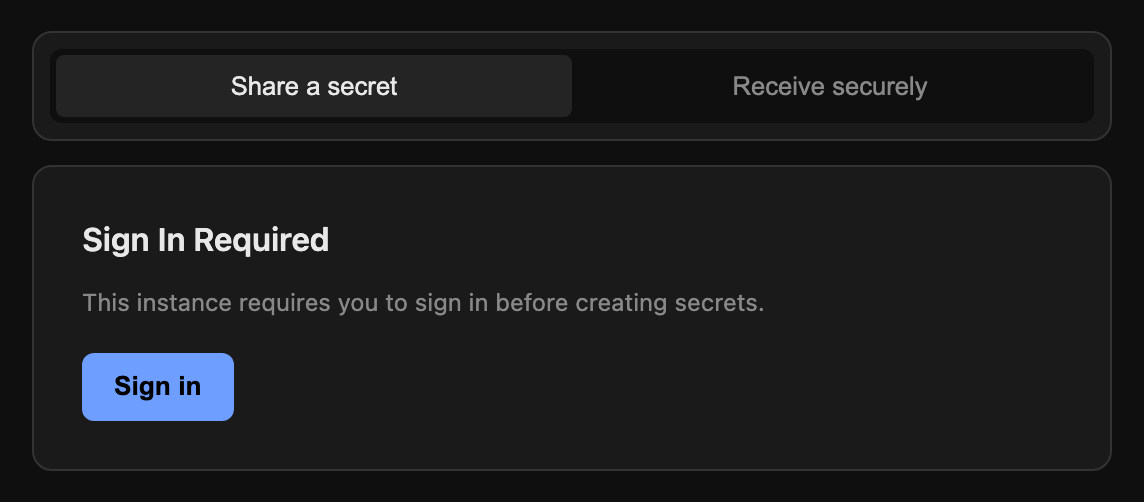
Administrators can configure the instance so that only signed-in users can create secrets. When this is enabled, the creation form is hidden and you must sign in first. Unauthenticated users can still view secrets that do not require authentication.
Privacy
Authentication in Pass It Around is designed to be minimal:
- No user information is stored alongside secrets. A "requires authentication" flag is just a boolean check.
- Session cookies are signed but contain only basic profile information (name, email) from your OAuth2 provider, and expire after 24 hours.
- The server does not log who created or viewed which secret.
Setup
Authentication requires an OpenID Connect provider. See the OAuth2 configuration section in the installation guide for the environment variables needed to enable it.
Open the App