Tracking Your Items
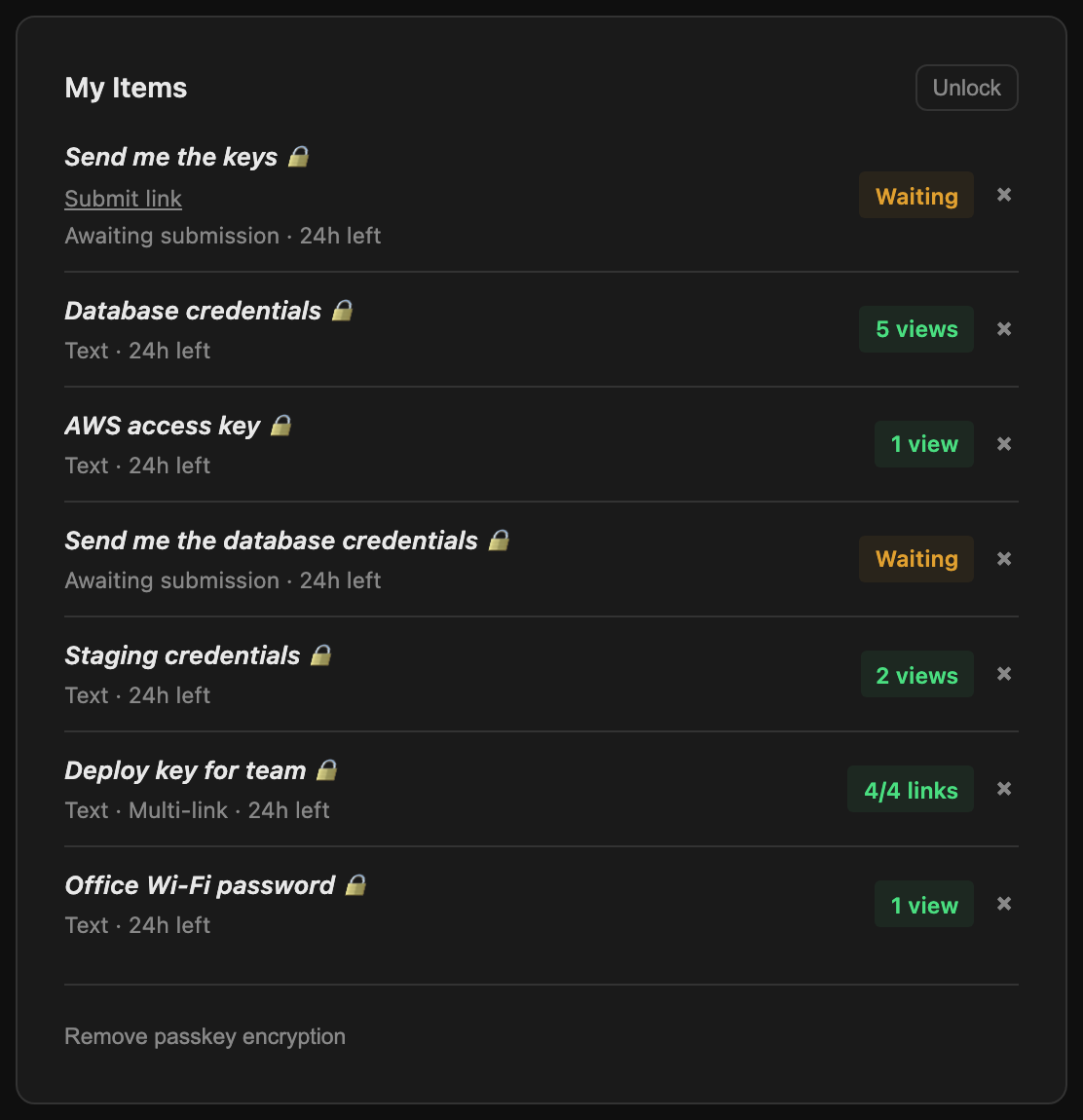
The "My Items" panel lets you monitor the status of secrets and receive links you have created, right from your browser.
How It Works
When you create a secret or receive link, you can optionally check "Store the secret link in local storage". This saves a reference to your item in your browser's local storage. The "My Items" panel then appears at the bottom of the page, showing all your tracked items with live status updates.
Labels
Adding a label when you create a secret makes it easy to tell your items apart in the list. Without a label, secrets show as "Secret" and files show their file name. Labels are encrypted, so the server never sees them in plaintext.
Status Indicators
| Status | Meaning |
|---|---|
| Available | The secret still exists and has remaining views. For receive links, it means the link is active and waiting for a submission. |
| Waiting | A receive link that has not received a submission yet. |
| Submitted | A receive link where someone has submitted a secret, ready for you to pick up. |
| Gone | The secret has been fully viewed, expired, or is otherwise no longer available on the server. |
What You Can Do
- Click on an item to open its link and view or retrieve it.
- Click the X button next to an item to remove it from your tracking list. This only removes it from local storage; the secret on the server is unaffected.
- For multi-link secrets, clicking the item shows a modal with all individual links and their used/available status.
Passkey Encryption
By default, stored links are saved unencrypted in local storage, which means anyone with access to your browser can read them. You can protect stored links by setting up passkey encryption.

How It Works
- Click "Encrypt" (or the "Set up passkey encryption" link) in the My Items panel. Your browser will prompt you to create a passkey using your device's biometric sensor, security key, or PIN.
- Once enrolled, all stored links and saved notification URLs are automatically encrypted using a key derived from your passkey via the WebAuthn PRF extension. The derived key uses AES-256-GCM, the same algorithm used for secret encryption.
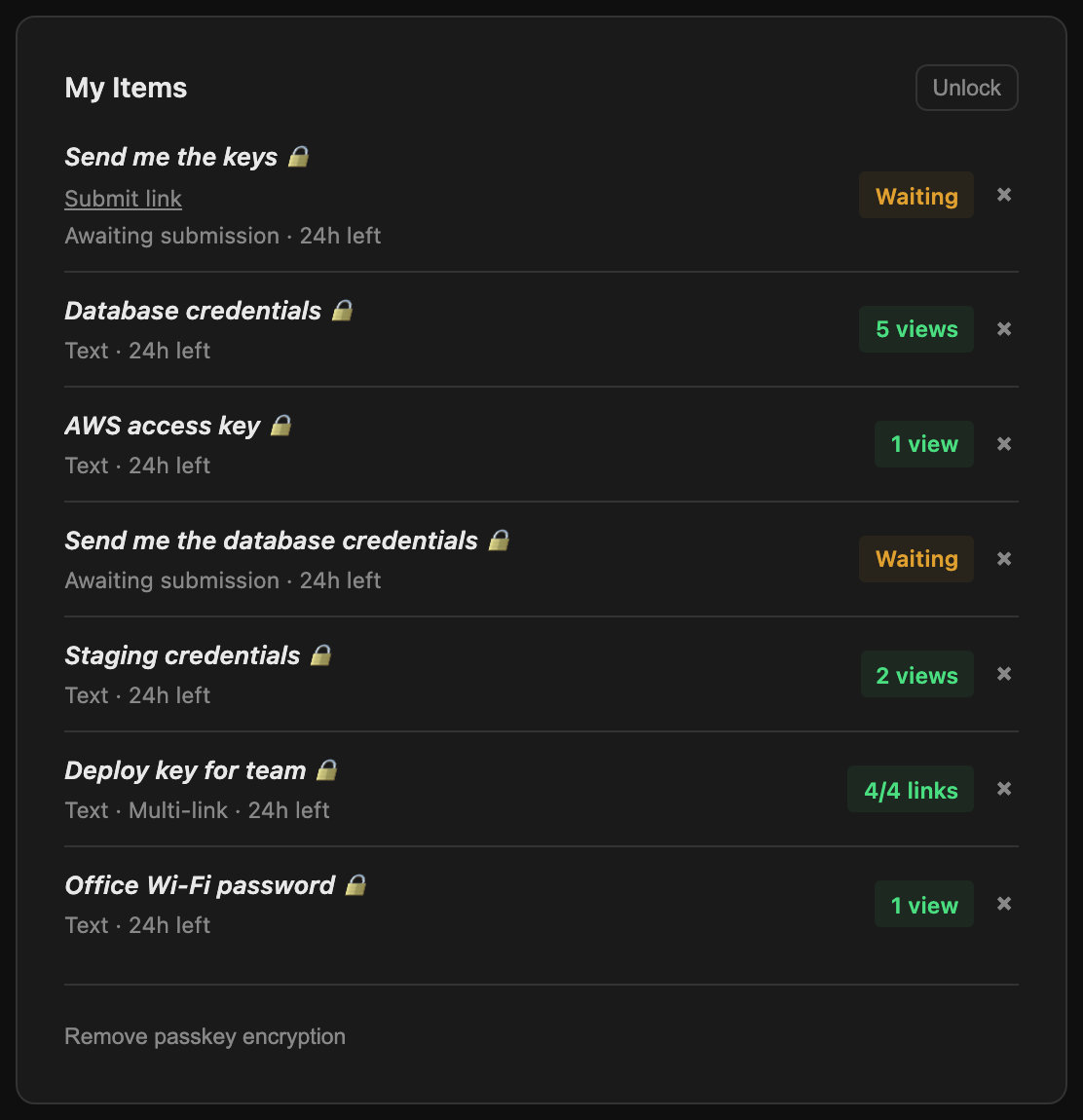
- When you revisit the page, items appear locked. Click "Unlock" and authenticate with your passkey to decrypt and access your stored links.
- Click "Lock" to clear the decryption key from memory. Items become inaccessible again until you unlock.
What Gets Encrypted
- Stored secret links (the URL containing the decryption key)
- Stored receive links (pickup and submit URLs)
- Saved notification URLs (Apprise URLs from "Remember notification settings")
Removing Passkey Encryption
You can remove passkey encryption at any time by clicking "Remove passkey encryption" at the bottom of the My Items panel. This decrypts all stored links and notification URLs back to plaintext and deletes the passkey credential reference. If your passkey has been deleted from your device and you cannot authenticate, use "Force remove" to remove the credential reference (encrypted data will be lost).
Requirements
- A browser that supports WebAuthn with the PRF extension (Chrome 116+, Edge 116+, Safari 18+, Firefox 131+).
- A passkey-capable authenticator (built-in biometrics, security key, or platform PIN).
- The "Encrypt" button only appears when your browser supports WebAuthn.
Privacy Considerations
- Links are stored in your browser's local storage, not on the server.
- Clearing your browser data will remove all tracked items (and the passkey credential reference).
- Private/incognito windows do not persist local storage after closing.
- The server does not know which items you are tracking.
Tips
- Use tracking for receive links so you know when a submission arrives without having to manually check the pickup link.
- Remove items from tracking after you no longer need them.
- If you are on a shared computer, avoid storing links in local storage. Instead, save the link somewhere else (e.g., a password manager).