Sharing Secrets
Share text, passwords, API keys, or files with anyone. Everything is encrypted in your browser before being uploaded.
Sharing Text
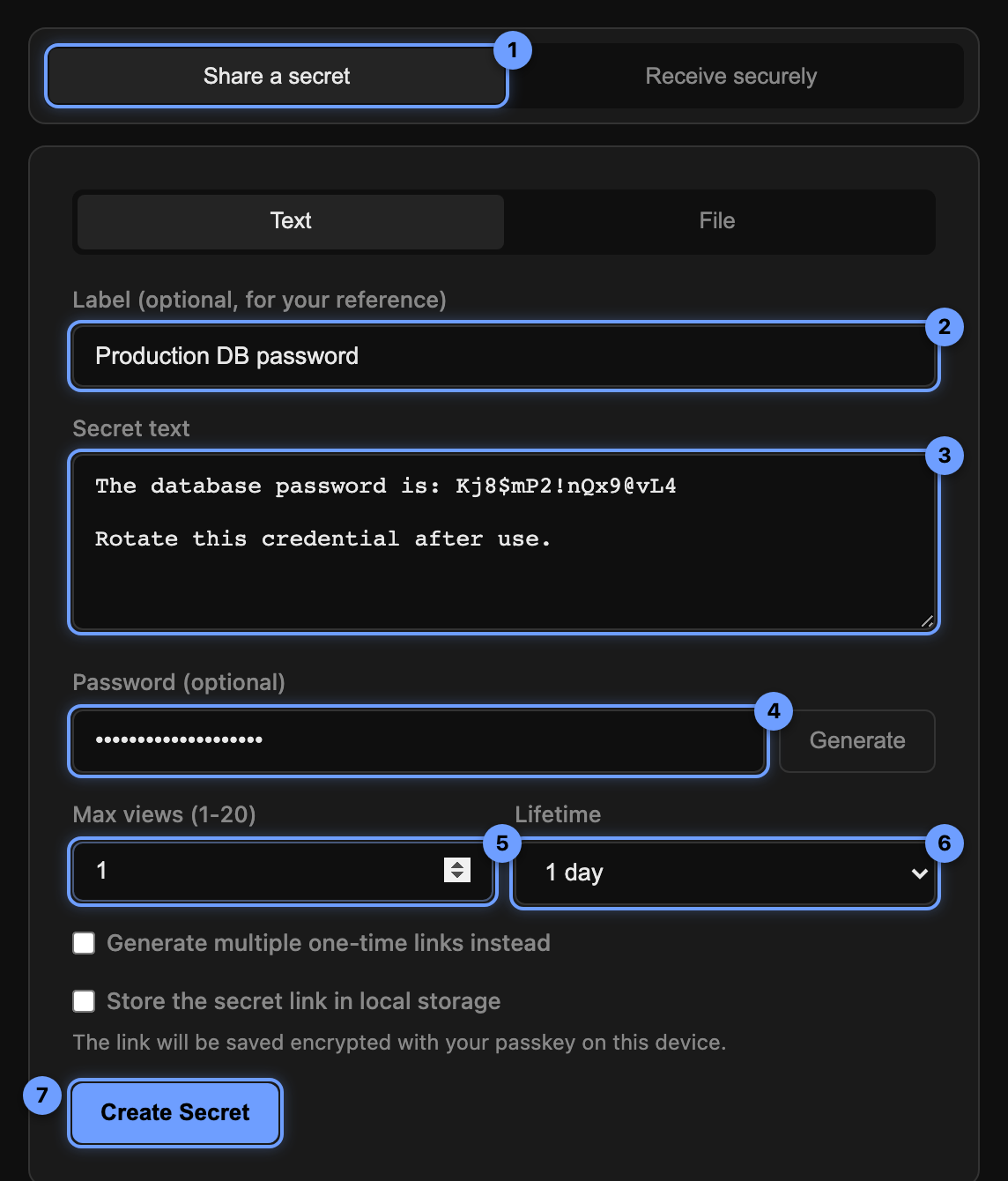
- Make sure "Share a secret" is selected at the top, and the "Text" tab is active.
- Type or paste your secret into the text area.
- Add a label (optional). Labels help you identify the secret in My Items. The label is encrypted with the same key as the secret, so the server cannot read it. Recipients also see the label on the confirmation screen before retrieving.
- Set a password (optional). If you set a password, the recipient will need to enter it before they can view the secret. Click "Generate" to create a strong random password and copy it to your clipboard.
- Set the max views to control how many times the secret can be retrieved before it is permanently deleted. Set it to 1 for a one-time secret.
- Set the lifetime to control when the secret expires automatically, regardless of whether it has been viewed.
- Click "Create Secret". A shareable link will appear. Click it to copy.
Sharing Files
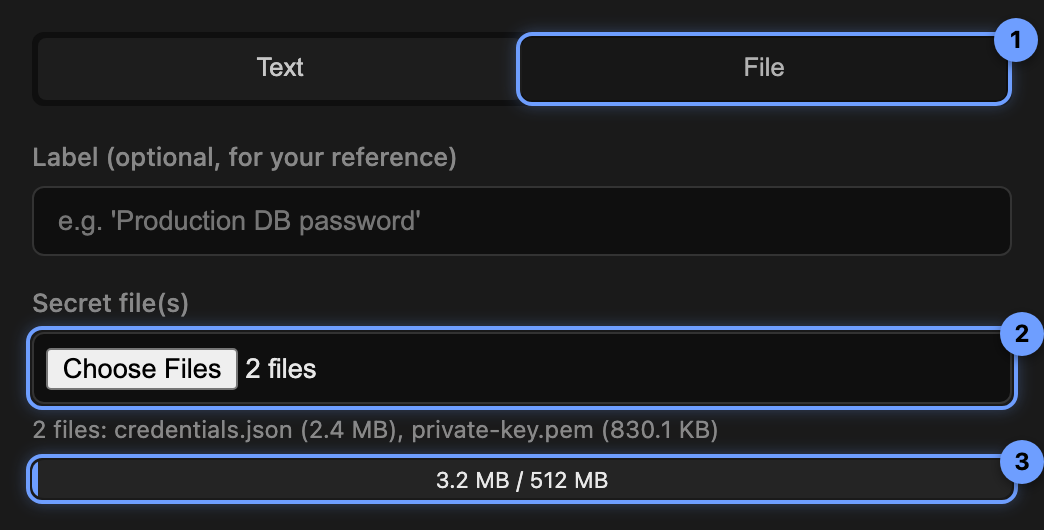
- Switch to the "File" tab in the Share a secret view.
- Select one or more files. If you select multiple files, they are bundled and encrypted together.
- Check the size indicator. The bar shows how much of the server's upload limit your encrypted files will use. If the bar turns red, your files are too large.
- Set options and click "Create Secret" just like with text.
Retrieving a Secret
When someone sends you a link to a secret:
- Open the link. If the secret has a password, you will be prompted to enter it.
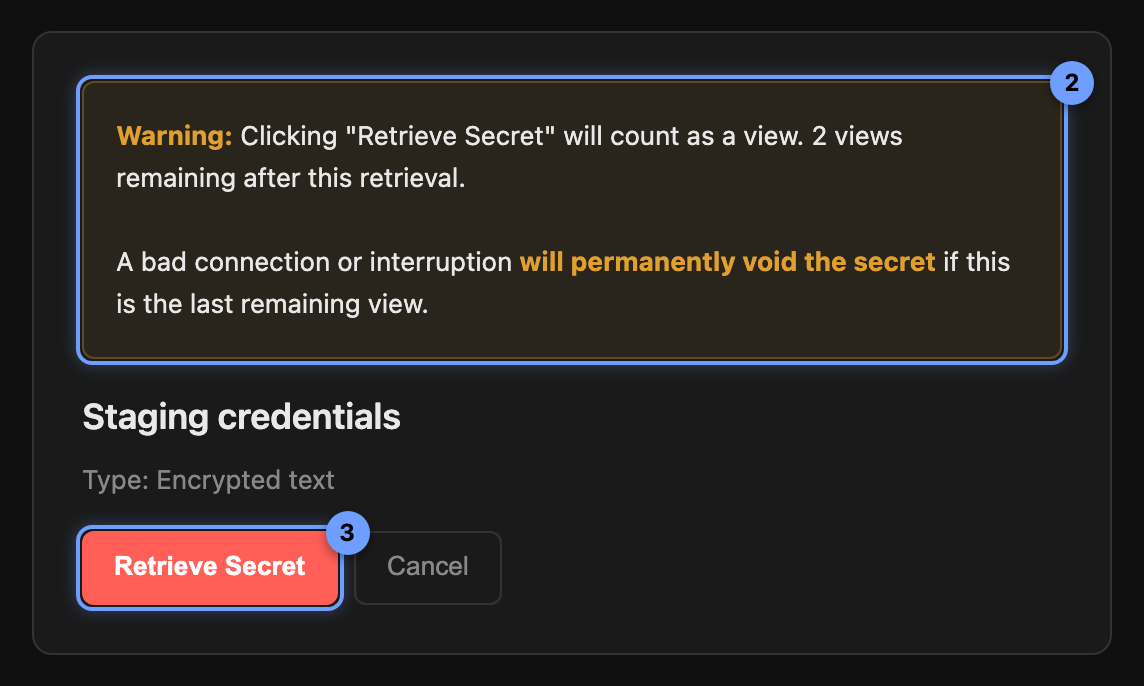
- Review the confirmation screen. You will see a warning that retrieving the secret counts as a view. If this is the last view, the secret will be permanently deleted after retrieval.
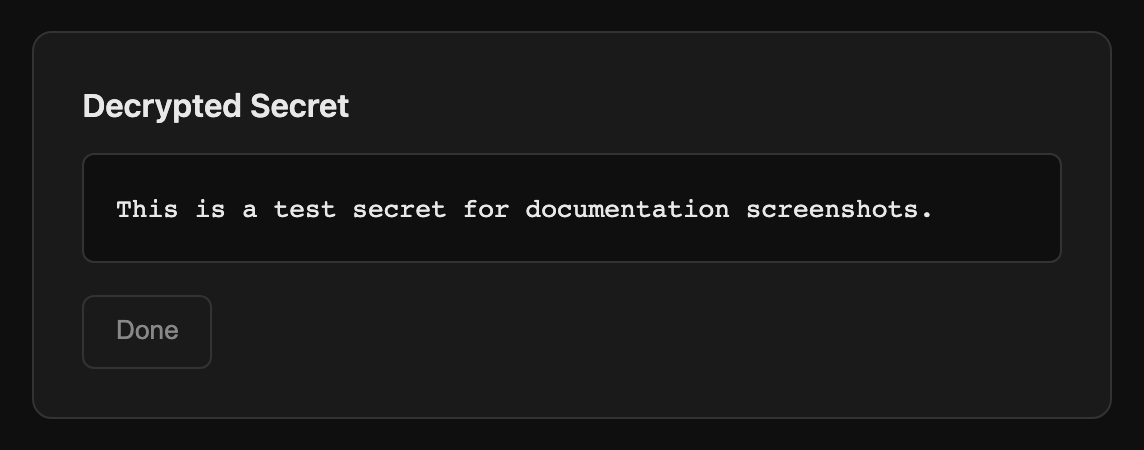
- Click "Retrieve Secret". For text secrets, the decrypted content will be displayed. For files, you will get a download button.
Options Explained
Label
An optional name for the secret (e.g., "Production DB password"). Labels are encrypted with the same key as the secret, so the server only stores ciphertext. Labels appear in My Items to help you tell secrets apart, and recipients see them on the confirmation screen before retrieving.
Password
Adding a password means the encryption key alone is not enough. The recipient also needs the password to decrypt the secret. This is useful if you are worried about the link being intercepted. You should send the password through a different channel than the link.
Max Views
Controls how many times the secret can be retrieved. After the limit is reached, the secret is permanently deleted from the server. Set to 1 for true "burn after reading" behavior. Set to 0 for unlimited views, meaning the secret will only expire based on its lifetime.
Lifetime
The secret is automatically deleted after this time period, even if it has not been viewed. Choose from 1 hour to 30 days (depending on server configuration). If the server allows it, an "Unlimited" option is available for secrets that should never expire on their own.
Store Link Locally
If checked, the share link is saved in your browser's local storage so you can find it later in My Items. Be aware that anyone with access to your browser could see (and use) the stored link.
Tips
- For maximum security, set max views to 1 and use a password. Send the link and password through different channels.
- If you need to share the same secret with multiple people, consider using Multi-Link Secrets instead of increasing the view count.
- Large files take longer to encrypt and decrypt. The progress is shown during upload.
- The "Generate" button creates a cryptographically strong random password and copies it to your clipboard automatically.