Multi-Link Secrets
Share the same secret with multiple people, where each person gets their own one-time link that can only be used once.
Why Multi-Link?
Imagine you need to share an API key with five team members. You could create a secret with 5 max views and send the same link to everyone, but then:
- You cannot tell who has viewed it and who has not.
- One person could accidentally (or intentionally) use multiple views.
- If someone forwards the link, you have no control over who uses the remaining views.
Multi-link solves this by generating a separate one-time link for each recipient. Each link can only be used once, and once used, that specific link is permanently consumed.
How to Create Multi-Link Secrets
- Enter your secret (text or file) as usual.
- Check "Generate multiple one-time links instead" below the lifetime selector.
- Set the number of links you want to generate (for example, 5 links for 5 recipients).
- Click "Create Secret". Instead of a single link, you will see a numbered list of one-time links.
- Send each link to a different person. Click any link to copy it.
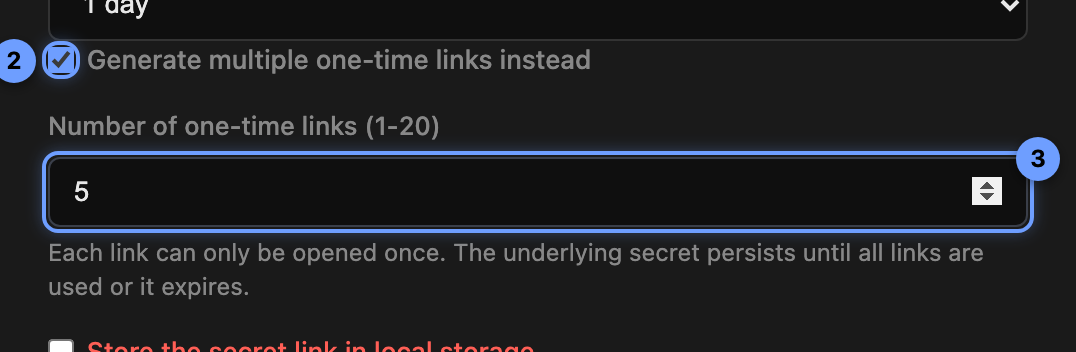
Enable multi-link mode by checking the toggle. Specify how many one-time links to generate.
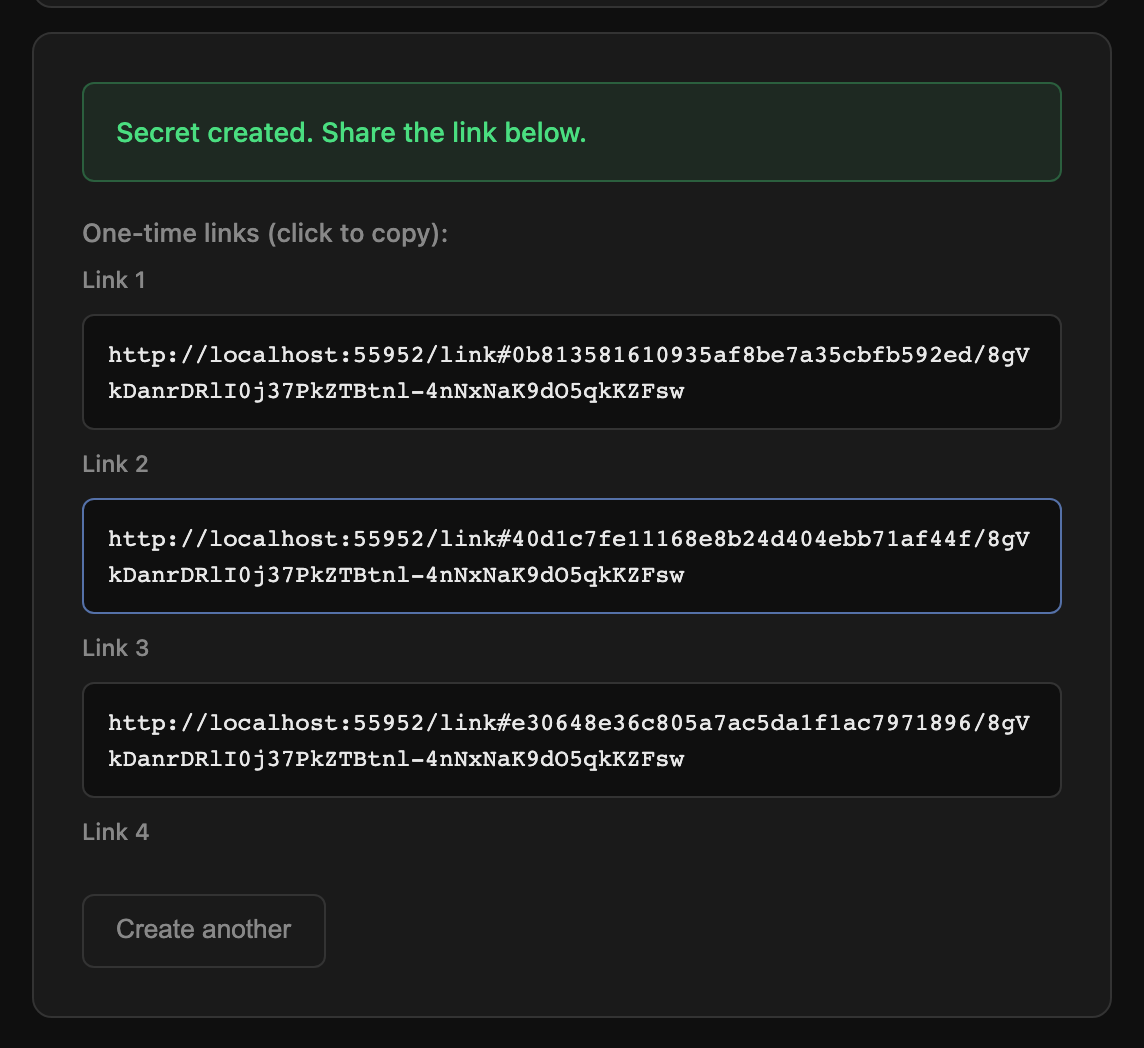
After creation, each link is numbered. Click any link to copy it to your clipboard.
How It Works
- The secret is stored once on the server. Each link is a separate token that points to the same underlying data.
- When someone opens their link, the token is consumed and they receive the decrypted secret.
- Used links cannot be reused. The recipient sees the secret once and the link is permanently invalidated.
- The underlying secret persists until all links are used or the lifetime expires, whichever comes first.
Max views does not apply to multi-link. When using multi-link mode, each link is inherently one-time. The number of links you generate determines the total number of views.
Tracking Multi-Link Usage
If you enable "Store the secret link in local storage", you can track the status of each individual link in My Items. Clicking on a multi-link item shows which links have been used and which are still available.
Tips
- Use multi-link when sharing credentials with a team. Each person gets proof they received the secret, and you know exactly how many links remain.
- Combine with a password for extra security. All recipients will need the same password.
- If you need to revoke access, the secret and all remaining links are deleted when the lifetime expires.