Receiving Secrets
Create a submission link so someone can securely send you a secret or file, without needing their own account or access to the app.
What Is Receive Mode?
Sometimes you need someone to send you a secret, rather than the other way around. For example:
- Asking a client to send you their API credentials
- Requesting a colleague to share a certificate or key file
- Collecting sensitive information from someone who does not have access to the app
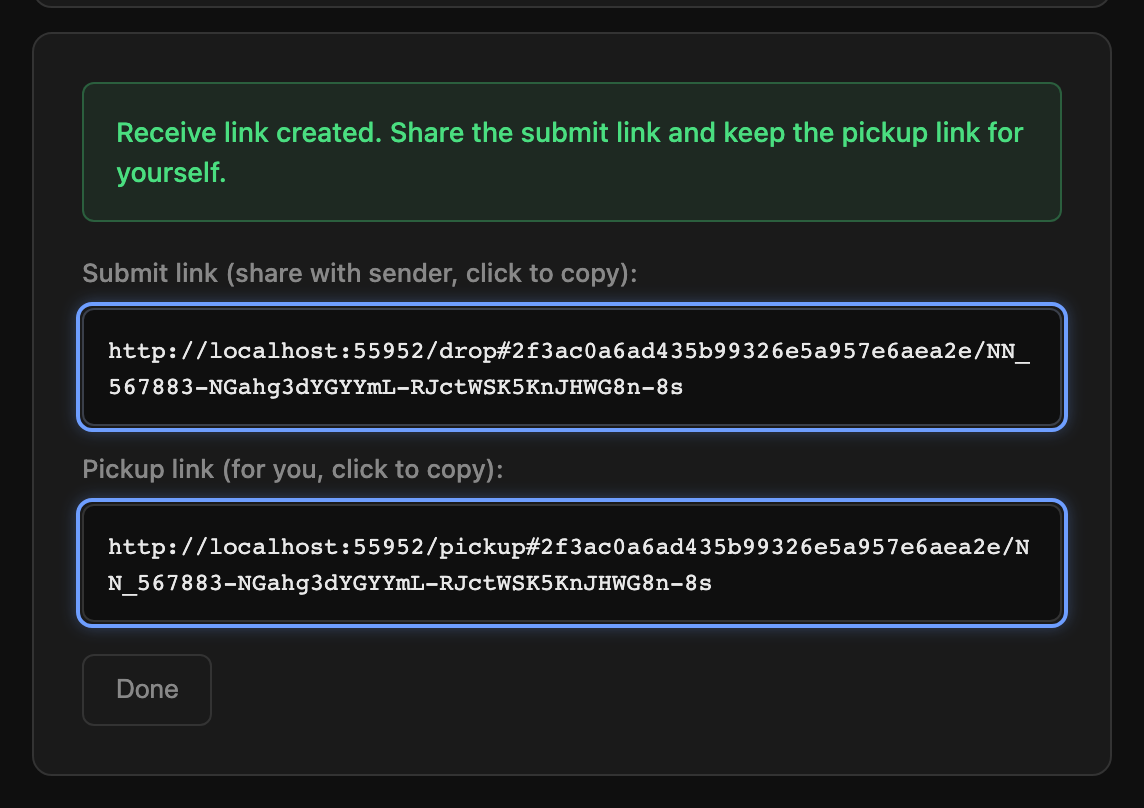
Receive mode (also called "dropbox" mode) generates two links:
- Submit link - you send this to the person who has the secret. They open it, type or upload their secret, and submit.
- Pickup link - you keep this for yourself. Once the other person has submitted, you open this link to retrieve and decrypt their submission.
Creating a Receive Link
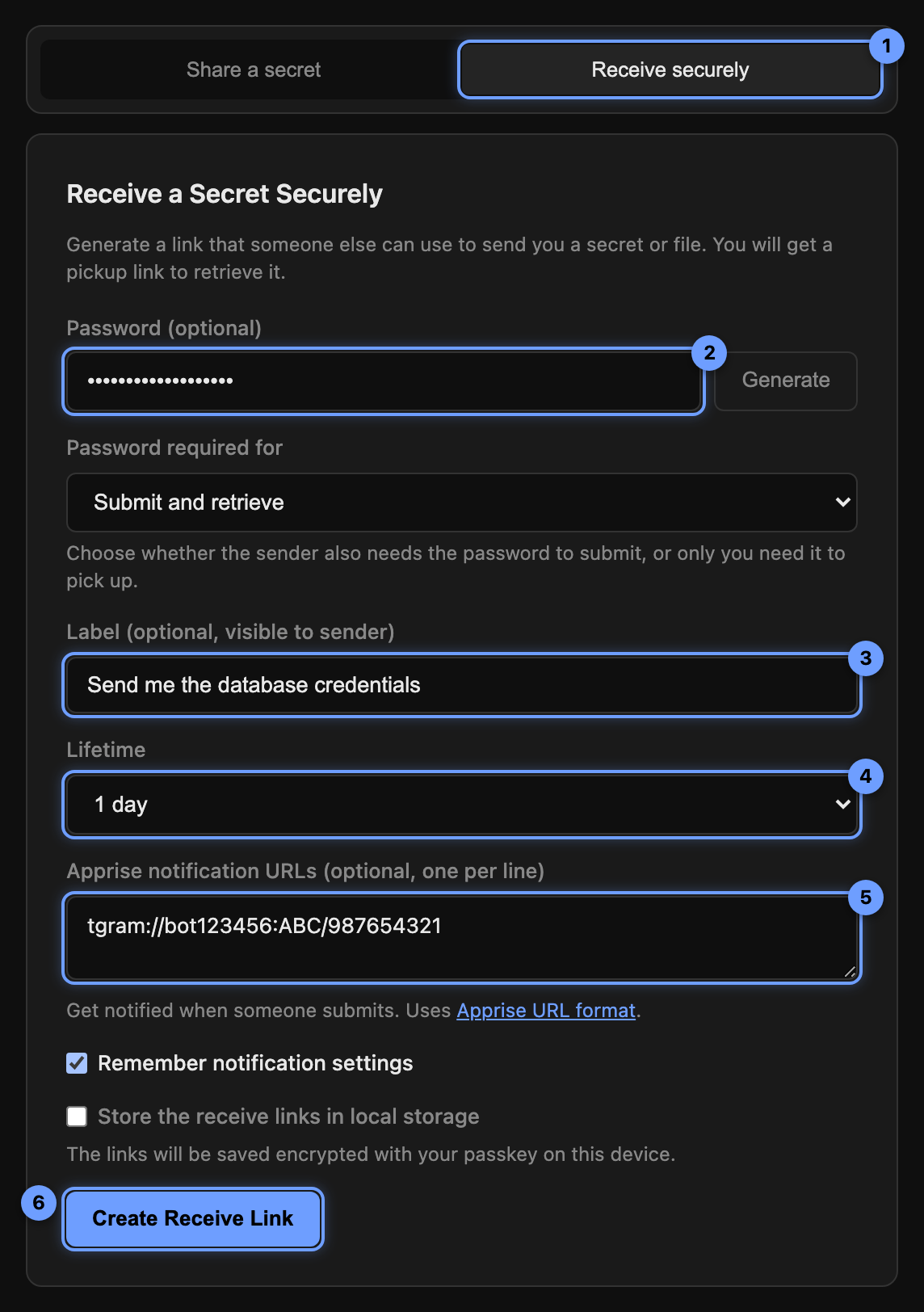
- Click "Receive securely" in the mode selector at the top of the app.
- Set a password (optional). You can choose whether the password is required for both submitting and retrieving, or only for retrieving.
- Add a label (optional). The label is visible to the sender so they know what you are asking for (e.g., "Send me the database credentials").
- Set the lifetime. The receive link expires after this time, whether or not anything has been submitted.
- Add notification URLs (optional). Get notified when someone submits to your link. Uses Apprise URL format for Telegram, Discord, Slack, email, and many more.
- Click "Create Receive Link".
What the Sender Sees
When the sender opens the submit link, they see a simple form where they can type text or upload files. If you set a label, it appears as instructions at the top. If a password is required for submission, they will need to enter it.
After they click "Submit Secret", the data is encrypted in their browser and uploaded. They see a confirmation message and are done.
Picking Up the Submission
- Open your pickup link. If nothing has been submitted yet, you will see a "No submission yet" message with a refresh button.
- Once a submission is ready, you will see a retrieval button. Enter the password if one is required.
- Click "Retrieve Submission". The submission is decrypted in your browser. For text, it displays immediately. For files, you get download buttons.
Password Modes
When you set a password on a receive link, you can choose how it is applied:
| Mode | Submit | Retrieve | Best for |
|---|---|---|---|
| Submit and retrieve | Password required | Password required | Maximum security. Share password with the sender separately. |
| Retrieve only | No password needed | Password required | Easy for the sender, protected pickup for you. |
Notifications
You can enter one or more Apprise notification URLs to be notified when someone submits to your receive link. Supported services include:
- Telegram (
tgram://bottoken/chatid) - Discord (
discord://webhook_id/token) - Slack (
slack://token_a/token_b/token_c/#channel) - Email, Pushover, Gotify, ntfy, and many more
Enter one URL per line. Check "Remember notification settings" to save your notification URLs for next time (stored in your browser's local storage). If you have passkey encryption set up, saved notification URLs are automatically encrypted alongside your stored links.
Tips
- Always keep your pickup link safe. If you lose it, you cannot retrieve the submission.
- Enable "Store the receive links in local storage" to track your receive links in My Items.
- Use the "Retrieve only" password mode when you want to make it easy for the sender while keeping your pickup protected.
- The sender does not need an account or access to your instance beyond the submit link.